一步两步是魔鬼的步伐

Duan1v's Blog

使用Hugo自搭博客系列一:安装

安装:

 1
 2
 3
 4
 5
 6
 7
 8
 9
10
➜  ~ lsb_release -a
No LSB modules are available.
Distributor ID: Ubuntu
Description:    Ubuntu 20.04.4 LTS
Release:        20.04
Codename:       focal
➜  ~ arch
x86_64
➜  ~ go version
go version go1.18.3 linux/amd64
  • 安装
1
sudo apt-get install hugo

或者 直接下载bin文件,然后解压到/usr/local/bin

1
sudo tar -zxvf /mnt/d/Ubuntu/hugo_extended_0.101.0_Linux-64bit.tar.gz -C /usr/local/bin
  • 查看版本(注意:非extended版本不支持编译scss)
1
2
➜  ~ hugo version
hugo v0.101.0-466fa43c16709b4483689930a4f9ac8add5c9f66+extended linux/amd64 BuildDate=2022-06-16T07:09:16Z VendorInfo=gohugoio

生成网站

  • 在磁盘中找一块风水宝地,开启自搭博客之旅
1
hugo new site my_blog

来个主题

我选的是even主题

1
2
3
4
5
6
cd my_blog
git clone https://github.com/olOwOlo/hugo-theme-even themes/even
rm -rf themes/even/.git
mv themes/even/exampleSite/content/* content/
mv themes/even/exampleSite/config.toml ./
hugo server --theme=even --buildDrafts -D

打开 http://localhost:1313/

可参考文档进行配置config.toml

启动本地服务可能会有警告

1
2
# google_news internal template should be deprecated...
https://github.com/gohugoio/hugo/issues/9172
  • 可以删除掉themes\even\layouts\partials\head.html中的下面代码:
1
{{- template "_internal/google_news.html" . -}}

手机访问wsl2网站

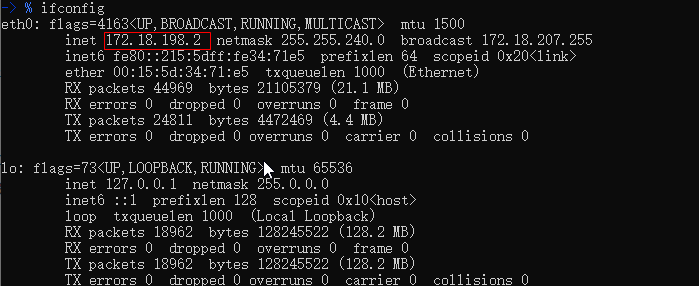
查看wsl2的ip

1
-> % ifconfig

https://static.duan1v.top/images/HrVaUNqWIzm5AFw.png

开启服务,如nginx(配置端口为非80端口)

  • 确保 wsl2的ip:nginx配置中的端口 可以访问网站

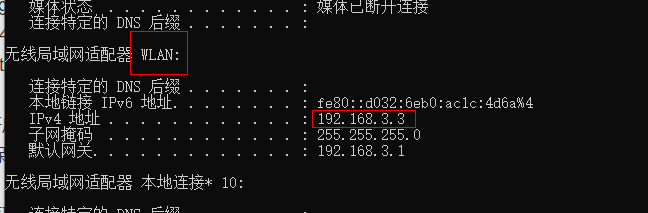
cmd 获取主机ip

1
C:\WINDOWS\system32>ipconfig

https://static.duan1v.top/images/AZ56wFbKtrqzRlQ.png

cmd 管理员权限

  • 映射
1
netsh interface portproxy add v4tov4 listenaddress=主机ip listenport=来个端口如8080 connectaddress=wsl2的ip connectport=nginx中配置的端口
  • 查看
1
netsh interface portproxy show all
  • 删除
1
netsh interface portproxy delete v4tov4 listenaddress=主机ip listenport=8080

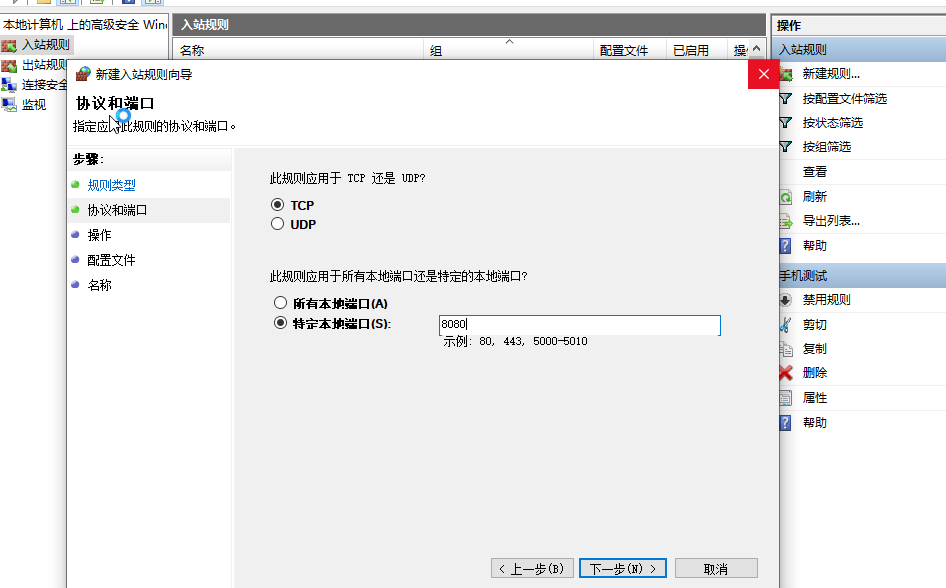
防火墙新建端口规则:

  • 防火墙->高级设置->入站规则->新建规则,新建一个端口规则

https://static.duan1v.top/images/jDlInVhWBsQiq6b.png

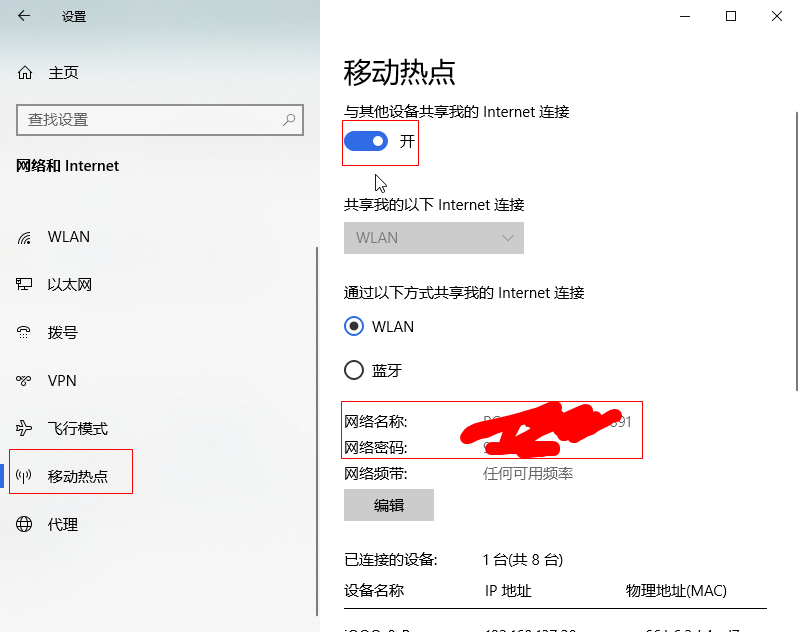
电脑打开移动热点

https://static.duan1v.top/images/6AxiBaImfKcTVsu.png

手机连上移动热点

手机访问

主机ip:8080

docker 使用总结 win10

docker的数据位置及安装位置

  • docker默认的安装位置是在:“C:\Program Files\Docker”
  • 数据位置,包括镜像位置(wsl2)及docker桌面的位置是在:C:\Users\Administrator\AppData\Local\Docker
  • 由于docker所耗存储是大的,且随镜像的增多而增大,所以不能放在C盘,但是: 网上直接迁移docker使用的wsl2所在位置,或者直接软链数据位置(或\wsl\data):都将使docker desktop无法打开或闪退
  • 遂在安装之前,直接将上面两个目录都完整软链;然后再安装docker desktop
1
2
3
4
mklink /j "C:\Users\Administrator\AppData\Local\Docker" "F:\Docker"
mklink /j "C:\Program Files\Docker" "F:\Program Files\Docker"
mklink /j "C:\Users\Administrator\AppData\Roaming\Docker" "F:\Roaming\Docker"
mklink /j "C:\Users\Administrator\AppData\Roaming\Docker Desktop" "F:\Roaming\Docker Desktop"
  • 隔了几天,好像又闪退,无语
  • 感觉和电脑配置以及镜像空间占用大小有关系,面向玄学编程

mysql

  • powershell中拉镜像
1
docker pull mysql
  • 创建并启动容器
1
docker run -p 3307:3306 --name mysql --restart=always --privileged=true -v /g/docker/mysql/data:/var/lib/mysql -v /g/docker/mysql/conf:/etc/mysql/conf.d -e MYSQL_ROOT_PASSWORD=来个密码  -d mysql
  • 兼容之前版本的密码认证,需要进入容器,root登录mysql;做以下操作,主机客户端才能连接
1
2
3
4
5
6
CREATE USER '来个用户'@'%' IDENTIFIED BY '来个密码';
GRANT ALL ON *.* TO '上面的用户'@'%';
ALTER USER '上面的用户'@'%' IDENTIFIED BY '来个密码' PASSWORD EXPIRE NEVER;
# 可以修改密码
# ALTER USER '上面的用户'@'%' IDENTIFIED WITH mysql_native_password BY '换个密码';
flush privileges;
  • 配置文件 /g/docker/mysql/conf/my.cnf
1
2
3
4
5
6
chmod -R 644 /g/docker/mysql/conf/my.cnf

[mysqld]
max_connections=1600
secure_file_priv=/var/lib/mysql
skip_ssl

PS:如果出现下面这个错误,等一会就行

ERROR 2002 (HY000): Can’t connect to local MySQL server through socket ‘/var/run/mysqld/mysqld.sock’ (2)

redis

  • 拉镜像
1
docker pull redis
  • 运行容器
1
docker run -p 6380:6379 --name redis --restart=always -v /g/docker/redis/conf:/etc/redis/redis.conf  -v /g/docker/redis/data:/data  -v /g/docker/redis/persist_data:/persist_data -d redis redis-server /etc/redis/redis.conf/redis.conf

确保主机中的挂载目录存在

redis-server 指定的是文件,而非目录

其中redis的配置G:\docker\redis\conf\redis.conf

 1
 2
 3
 4
 5
 6
 7
 8
 9
10
11
12
13
14
15
16
17
18
chmod -R 644 /g/docker/redis/conf/redis.conf

# 注释掉这部分,使redis可以外部访问;否则外部访问将报错EOF
# bind 127.0.0.1 
# 用守护线程的方式启动
daemonize no
# 给redis设置密码
requirepass q123456we
# AOF持久化开启,默认是no
appendonly yes
# 更改本地redis数据库存放文件夹(可选)
dir /persist_data
# 防止出现远程主机强迫关闭了一个现有的连接的错误,默认是300
tcp-keepalive 300 
# AOF持久化配置
appendfsync everysec
# RDB持久化关闭,默认是no
save ""

dockerfile 构建

目录

 1
 2
 3
 4
 5
 6
 7
 8
 9
10
11
12
➜  /workspace tree .
.
├── Dockerfile
├── download
│   ├── go1.18.3.linux-amd64.tar.gz
│   ├── protoc
│   │   ├── bin
│   │   ├── include
│   │   └── readme.txt
│   └── protoc.tar.gz
├── run.sh
└── zshrc_tmp

命令(注意最后的点)

1
docker build -f Dockerfile -t workspace:go .

dockerfile 部分代码

 1
 2
 3
 4
 5
 6
 7
 8
 9
10
11
12
13
14
15
16
17
18
19
20
21
22
23
24
25
26
27
28
29
FROM ubuntu:18.04

LABEL Author="yiwei.duan@outlook.com" Description="This image is ubuntu:20.04 with common software." Version="1.0"

WORKDIR /workspace

RUN echo "deb http://mirrors.aliyun.com/ubuntu/ bionic main restricted universe multiverse" > /etc/apt/sources.list \
	&& echo "deb http://mirrors.aliyun.com/ubuntu/ bionic-security main restricted universe multiverse" >> /etc/apt/sources.list \
	&& echo "deb http://mirrors.aliyun.com/ubuntu/ bionic-updates main restricted universe multiverse" >> /etc/apt/sources.list \
	&& echo "deb http://mirrors.aliyun.com/ubuntu/ bionic-proposed main restricted universe multiverse" >> /etc/apt/sources.list \
	&& echo "deb http://mirrors.aliyun.com/ubuntu/ bionic-backports main restricted universe multiverse" >> /etc/apt/sources.list \
	&& echo "deb-src http://mirrors.aliyun.com/ubuntu/ bionic main restricted universe multiverse" >> /etc/apt/sources.list \
	&& echo "deb-src http://mirrors.aliyun.com/ubuntu/ bionic-security main restricted universe multiverse" >> /etc/apt/sources.list \
	&& echo "deb-src http://mirrors.aliyun.com/ubuntu/ bionic-updates main restricted universe multiverse" >> /etc/apt/sources.list \
	&& echo "deb-src http://mirrors.aliyun.com/ubuntu/ bionic-proposed main restricted universe multiverse" >> /etc/apt/sources.list \
	&& echo "deb-src http://mirrors.aliyun.com/ubuntu/ bionic-backports main restricted universe multiverse" >> /etc/apt/sources.list

RUN apt-get update \
        && apt-get install -y openssh-server \
	&& mkdir /var/run/sshd \
	&& echo 'root:来个密码' | chpasswd \
	&& echo "PermitRootLogin no " >> /etc/ssh/sshd_config \
	&& echo "PasswordAuthentication yes " >> /etc/ssh/sshd_config \
	&& echo "PubkeyAuthentication yes " >> /etc/ssh/sshd_config \
	&& echo "来个新用户名 ALL=(ALL) ALL" >> /etc/sudoers

ADD run.sh /
RUN chmod +x /run.sh
CMD ["/run.sh"]

TIPS:

出现 unexpected EOF,可能是电脑或者网络不太行,直接继续执行之前的命令。

如果,emmm,比如,A容器使用过了2222端口进行了ssh连接,但之后将A删除了,新建B容器,也使用2222端口,需要将~/.ssh/known_hosts中的那条 [127.0.0.1]:2222删除

dockerfile中使用CMD,如下,容器无法启动;但sh文件单独执行是成功的,这时将run.sh中最后追加 " su root “即可

1
2
3
ADD run.sh /
RUN chmod +x /run.sh
CMD ["/run.sh"]

dockerfile中无交互生成ssh,并将本地公钥写进autthorized_key

1
2
3
4
5
RUN ssh-keygen -t rsa -P "" -f ~/.ssh/id_rsa \
	&& touch ~/.ssh/authorized_keys \
	&& chmod 600 ~/.ssh/authorized_keys \
	&& chmod 700 ~/.ssh \
	&& echo "主机公钥,位置在~/.ssh/id_rsa.pub" >>  ~/.ssh/authorized_keys

dockerfile中生成登录git的ssh

1
2
3
RUN ssh-keygen -t rsa -C "github邮箱" -P "" -f ~/.ssh/docker_rsa \
	&& touch ~/.ssh/config \
	&& echo "Host github.com\n\tHostName github.com\n\tPreferredAuthentications publickey\n\tIdentityFile ~/.ssh/docker_rsa\n\tUser duan1v" >> ~/.ssh/config 
  • 到github中 New SSH key
  • 测试连接git
1
ssh -T git@github.com

主机使用vscode;配置~/.ssh/config

1
2
3
4
Host 来个名字
    HostName 127.0.0.1
    User docker用户名
    Port docker端口

dockerfile无交互创建新用户

1
2
3
RUN useradd 来个用户名 -m \
	&& echo "来个密码\n重复密码" | passwd 上面那个用户名 \
 	&& usermod -a -G 上面那个用户名,sudo 上面那个用户名 

docker 推送镜像

  • 先创建仓库,创建之后可以看到,仓库名 是以"docker用户名/“为前缀的,还有一部分是自定义的,记住这个仓库名;自定义部分可以取,需要推送的那个镜像名就好,不用加TAG

https://hub.docker.com/repositories

  • 主机powershell
1
2
3
PS C:\Users\Administrator\Desktop> docker login 
Authenticating with existing credentials...
Login Succeeded
  • 将需要上传的 镜像A:A的TAG 重新生成一个与仓库名同名的镜像
1
docker tag 镜像A:A的TAG 仓库名:A的TAG
  • 最后push一下
1
docker push 仓库名:A的TAG

容器使用主机的vpn,dockerfile中添加

1
2
ENV https_proxy="http://host.docker.internal:主机的代理端口" \
	http_proxy="http://host.docker.internal:主机的代理端口" \

GO包管理

症状

  • 包与包之间方法无法调用
  • go get …的包无法引用

环境

1
2
3
4
5
6
7
8
-> % lsb_release -a
No LSB modules are available.
Distributor ID: Ubuntu
Description:    Ubuntu 20.04.4 LTS
Release:        20.04
Codename:       focal
-> % go version
go version go1.18.1 linux/amd64

设置环境变量

1
export GO111MODULE=on

IDE: vscode

单个项目不同包之间方法的访问

  • 确定需被访问的函数、方法或结构体等的开头字母大写,这是Go的访问控制
  • 在各包中初始化go.mod
1
go mod init 取个包名字

生成go.mod文件如下

1
2
3
module  m

go  1.18

VSCode打开多个项目

  • 在根目录中初始化go.work,将子目录加上
1
go work init ./product1 ./product2

go.work如下

1
2
3
4
5
6
7
8
9
go  1.18

use (

 ./product1

 ./product2 

)
  • 多个项目目录
 1
 2
 3
 4
 5
 6
 7
 8
 9
10
11
12
13
14
-> % tree
.
├── go.work
├── product1
│   ├── go.mod
│   ├── go.sum
│   ├── main.go
│   └── mytest.go
└── product2
    ├── go.mod
    ├── go.sum
    ├── channel.go
    ├── const.go
...

同包

1
2
3
-> % go run main.go 
# command-line-arguments
./main.go:110:2: undefined: TestSet
  • 尝试
1
-> % go run .

get新包,vscode引入

1
go get gopkg.in/fatih/set.v0
  • 引入
1
import "gopkg.in/fatih/set.v0"
  • 直接编译
1
2
3
-> % go run .
mytest.go:9:2: no required module provides package gopkg.in/fatih/set.v0; to add it:
        go get gopkg.in/fatih/set.v0
  • 解决方法
1
2
3
-> % go mod tidy
go: finding module for package gopkg.in/fatih/set.v0
go: found gopkg.in/fatih/set.v0 in gopkg.in/fatih/set.v0 v0.2.1
  • 等2s,可以发现IDE的红杠杠没了

  • 可以发现go.mod及go.sum方法多了几行对gopath中的包的引入

记录下学习使用kratos的过程

学习源

步骤及总结

新建微服务模块、版本模块:

1
2
kratos new user
kratos proto add api/user/v1/user.proto

编写proto文件,记录下简单的使用,详情见官网

  • message 定义结构体,其中的字段表示结构体的字段
  • 先定义远程方法中的接收结构体以及响应结构体
  • 再使用service 定义微服务接口,以及待实现的远程方法

输出微服务的go文件

1
make api
  • grpc.go中是定义了客户端的,可以把这个proto文件发到任意客户端,用protoc生成指定的语言,比如带上参数 –cpp_out生成cpp文件,可以明确知道这个微服务定义了哪些方法
  • protoc的具体命令在Makefile中
  • PS:输出proto文件中的rpc部分,需要带上参数参考
1
protoc --go_out=plugins=grpc:. *.proto

修改service/user/internal/conf/conf.proto,字段需与configs下面的配置保持一致

  • 为什么是configs?这是main.go在调用的时候传的参数(写在init()中的)
  • 先看下conf.proto,一个Bootstrap结构体中包含了两个字段,一个server,一个data,分别对应上层目录中相邻的模块目录,data模块主要是负责数据库的建立,以及数据表模型的CRUD;server则是决定rpc的连接方式。先这样,生成下config的go文件
1
make config
  • 然后更改下configs中的配置

现在该写下data层了

  • data.go负责数据库连接生成
  • user.go中定义数据表结构体,主要负责数据库层面的CRUD。定义字段类型时,要注意与user.proto生成中的类型是否一致,如果不一致的话,需要在返回类型中转换成user.proto中定义的类型,比如birthday字段

再看看biz层

  • 这一层是业务逻辑层
  • 根据data层返回的数据,进行业务整理
  • 可以看出biz是依赖于data的

再看看server层

  • grpc.go中定义了一个生成grpc服务的方法,关键参数是UserService,这指定了这次微服务的 主角

那就看看service层,UserService

  • 这个接口是要实现由user.proto生成的v1.UserServer接口
  • 需要继承v1.UnimplementedUserServer,这是一个针对客户端调取不存在的远程方法的错误处理
  • 也是因为go是鸭子语言,在编写UserService时,对实现接口的方法不敏感,可能写的方法名与v1.UserServer接口定义的不一致;当然它的好处是,不妨碍调用已实现的方法
  • 这个UserService是依赖于biz层的,主要是负责通过biz层处理结果整理相应远程函数的返回数据格式

那么这些层是怎么串起来的呢

  • 先整理下依赖关系

server->service->biz->data

  • 当然可以手动生成各部分依赖,不过有更简单地方式:wire

  • 在各层中,server.go、service.go、biz.go、data.go中都将各自的逻辑放到了provider中

1
var  ProviderSet = wire.NewSet(NewUserUsecase)
  • 可以在cmd/user中看到wire.go(这个文件是不经过IDE校验的——无法ctl+鼠标点击到相应方法,这是由于前两行),通过在该文件夹下执行 wire 命令,可以自动生成wire_gen.go

  • 在wire.go中,wire.build参数不仅有上面的各个ProviderSet,还有一个main.go中的函数newApp(),然后发起了一次依赖的自行实例化,返回一个kratos.App指针

  • 入口文件main.go中就是获取配置,使kratos.App跑起来

1
kratos run

测试相关

ginkgo 文档

  • 先在需要测试的目录中,编写*_suit_test.go,比如:data层目录;在BeforeSuite方法中连接数据库,在AfterSuite可以打印一些结束标志吧;然后再user_test.go中编写user.go的相关测试用例

  • 使用gomock,需要对指定接口生成mock文件,参考;这里需要注意下**“user/internal/biz”**,这个需要写完整,而不能写 .

1
mockgen -destination=../mock/mrepo/user.go -package=mrepo "user/internal/biz" UserRepo
  • 为了方便,可以在UserRepo接口上添加这句,方法有变动,方便重新生成
1
//go:generate mockgen -destination=../mock/mrepo/user.go -package=mrepo "user/internal/biz" UserRepo

使用kratos封装的consul的一些坑, 官方示例

shop/configs/config.yaml ;写成 “discovery:///shop.user.service” , 会报 “endpoint found,refused to write” ;还是得改成"127.0.0.1:50052",才能调用。

wsl2搭建vscode+go+debug

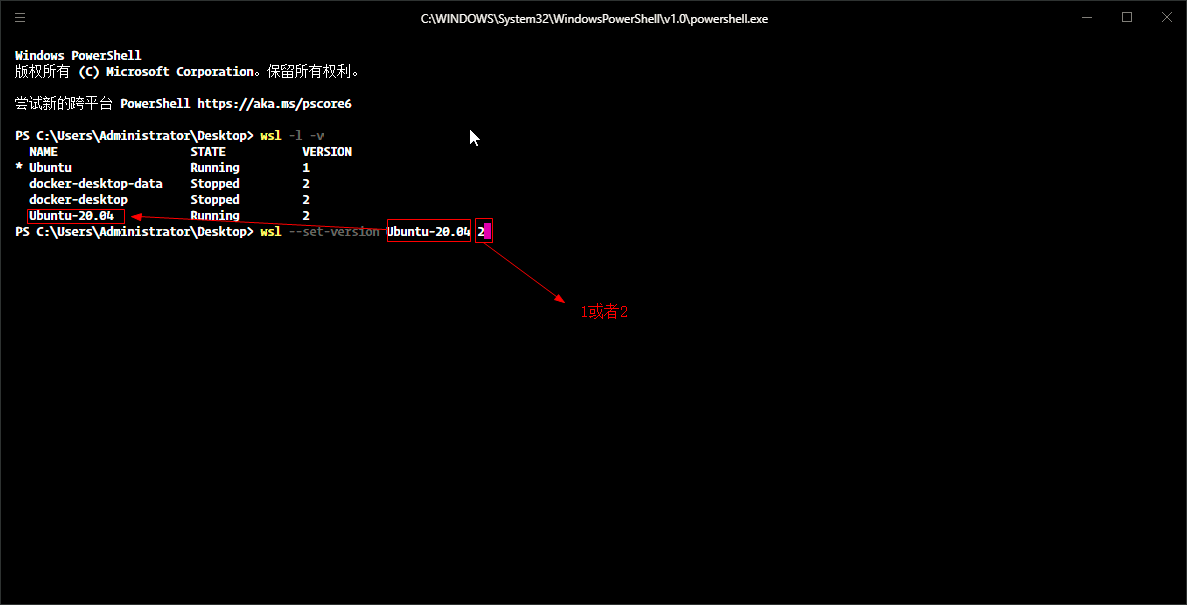
wsl1不支持远程调试,必须是wsl2才可以使用

1
2
wsl -l -v
wsl --set-version Ubuntu-20.04 2

https://static.duan1v.top/images/D6opftFzNaZPVuC.png

安装dlv(略)

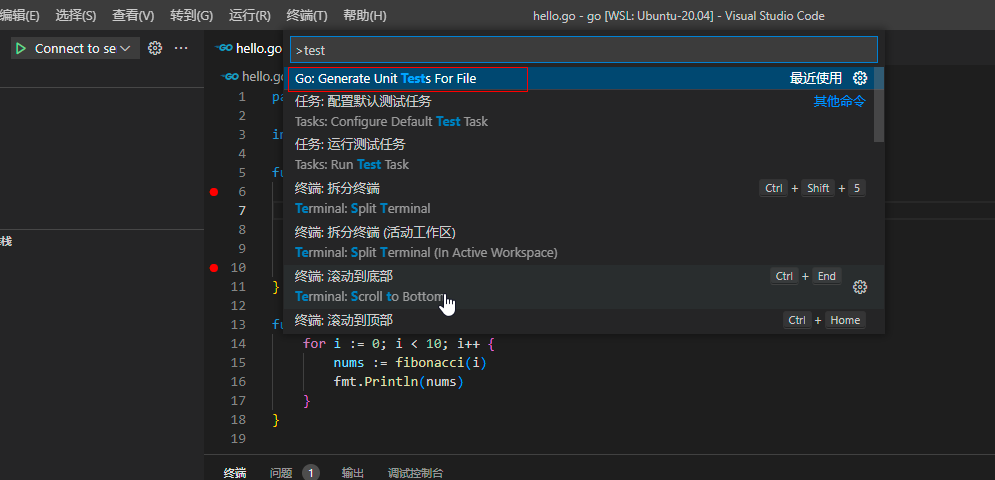
vscode生成测试文件,并补充完整

  • 打开需要测试的文件,f1或者shift+ctrl+p,键入test,选择如图选项

https://static.duan1v.top/images/hvwF31tAj4VrZ97.png

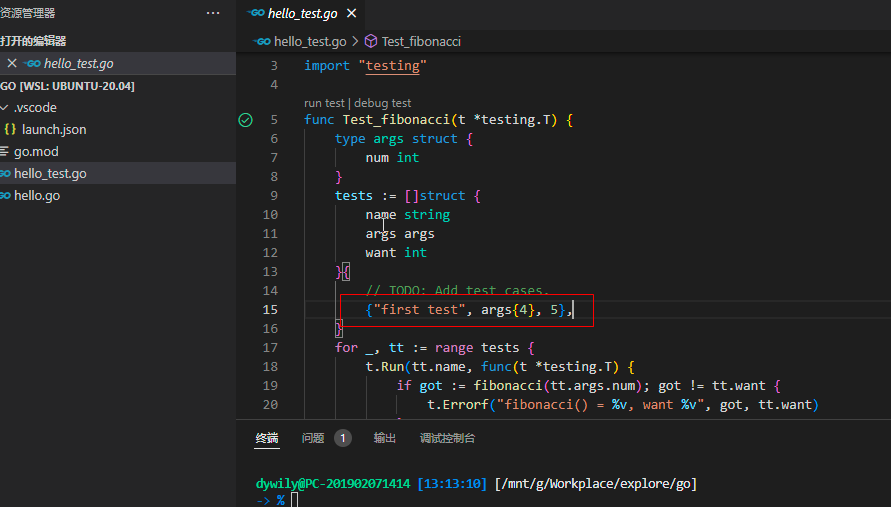
  • todo部分补充完整

https://static.duan1v.top/images/brA5Tp7jsYkiJ2F.png

配置

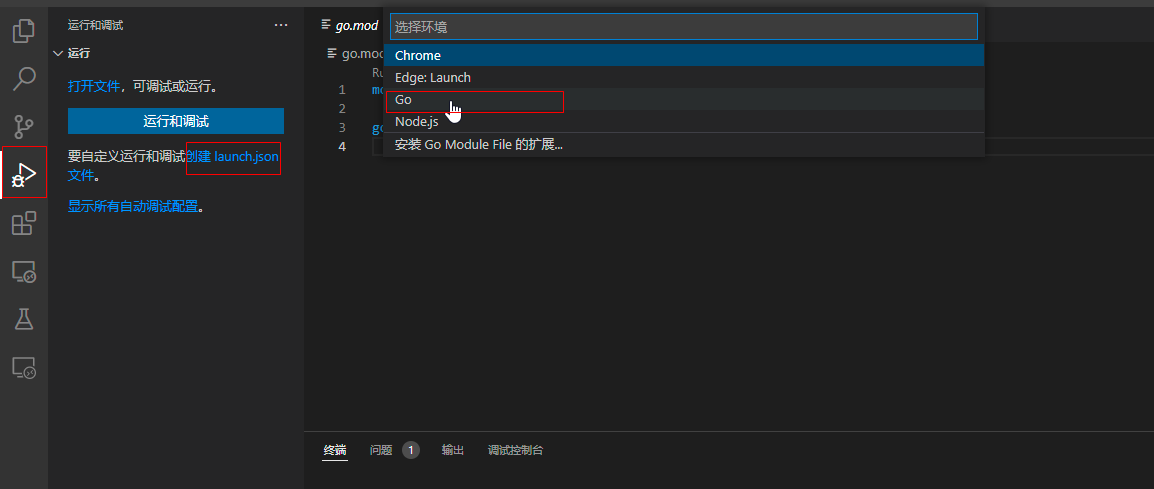
  • 生成配置文件

https://static.duan1v.top/images/TeURr51k4f3698y.png

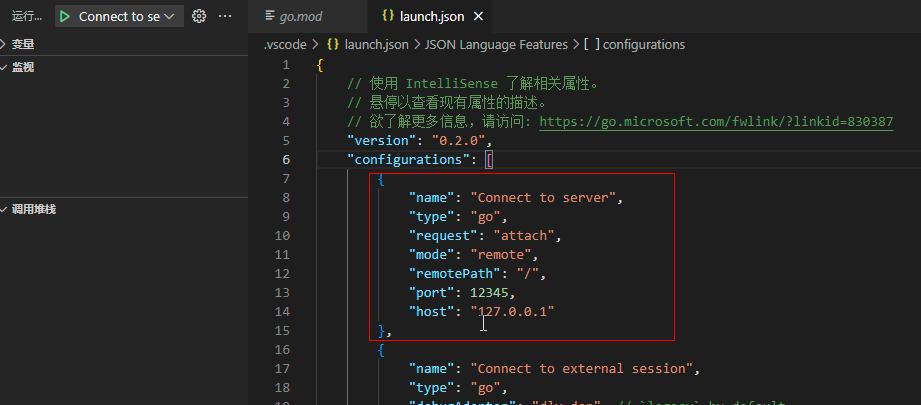
  • 更改配置
 1
 2
 3
 4
 5
 6
 7
 8
 9
10
{
            "name": "Connect to server",
            "type": "go",
            "request": "attach",
            "mode": "remote",
            "remotePath": "/",
            "debugAdapter": "dlv-dap",
            "port": 12345,
            "host": "127.0.0.1"
        }

https://static.duan1v.top/images/PdMsFauTEzyNWmw.png

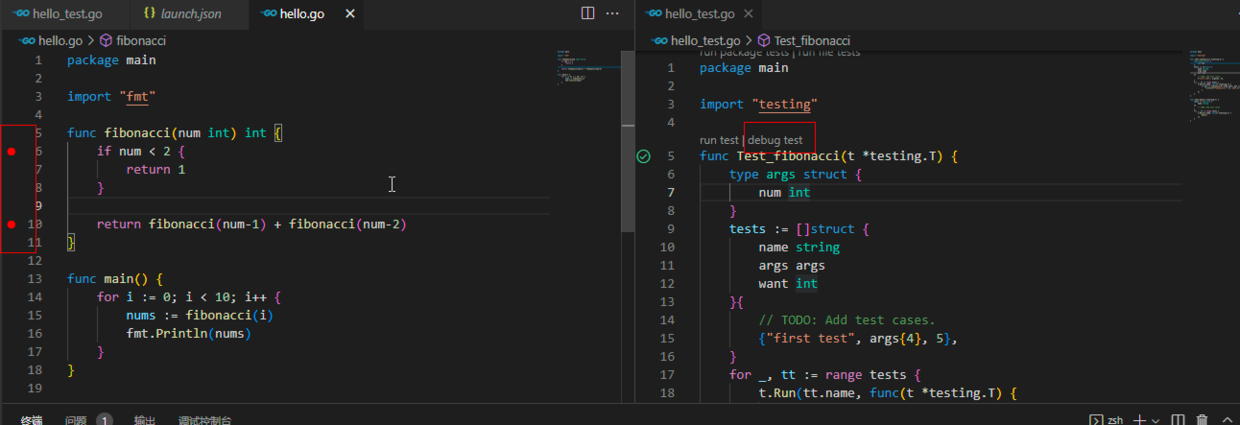
  • 添加断点,点击debug_test 开始debug

https://static.duan1v.top/images/z5ErMwbBIhYu3UH.png

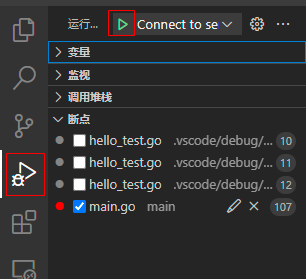
  • 手动触发

执行命令

1
-> % dlv debug --headless --listen=:12345 --log --api-version=2

点击按钮

https://static.duan1v.top/images/1obgvFEA4jVuZiK.png