一步两步是魔鬼的步伐

Duan1v's Blog

网站备案

备案类型

IPC备案

  • 不支持个人申请,需要有资质的服务器供应商,比如阿里云,腾讯云;

  • 服务器在国内,不备案是不行的,毕竟服务器供应商想停就停;

  • 做这个备案主要是为了网站可以被访问,所以国内服务器的网站是要做的;

  • 七牛云的国内加速域名也需要IPC备案。

公安网备案

  • 一般是基于IPC备案的,因为
法规
根据《计算机信息网络国际联网安全保护管理办法》(公安部令第33号)第二十三条规定“违反本办法第十一条、第十二条规定,不履行备案职责的,由公安机关给予警告或者停机整顿不超过六个月的处罚。
  • 所以说服务器在境外,只有被墙的风险;
  • 公安网备案有利于对网站的检举监督,网安估摸着是想所有网站都去公安备案,我一境外服务器也让我备案(一开始不懂,申请了,都撤回了,还电话让我备案),不过也无所谓,放在底下,当作是网站的门神了 😅 。

博客备案

github page或者 netlify等部署想要使用七牛云怎么办

Note
对于这些无服务器或者说未购买服务器的博客,域名是肯定要的,但是光有域名,也只能使用境外的CDN,所以域名要进行IPC备案

如果说在腾讯云只买了域名能进行IPC备案吗?

Note

客服回答,IPC备案与域名在哪无关,要去服务器供应商平台申请;

但是腾讯云的IPC备案页面有个 备案授权码 ,这个只有企业服务器是有的,但是是可以买到的(某宝),再但是记一下价格;

阿里云也有类似的,备案服务号 ,也是可以买到了,对比一下价格;

所以说,自搭博客的域名不要在腾讯买!买域名前先查下相应平台的备案服务号价格!
本地博客编写

博客自搭后传

好了,博客是搭好了,该怎么更舒服地进行本地编写呢?

  • 主要的是编写时图片怎么处理
  • 之后是已经编写完的文章的图片怎么处理

坚果云

直接使用坚果云的轻应用 坚果云Markdown

  • 但是会创建额外的文件夹,看着不太舒服
  • 用这种方式,注意在.gitignore中忽略该目录
  • 对于之前创建的文章的图片,处理比较麻烦,而且直接用云存的话,识别的图片格式不多

Typora + PicGo

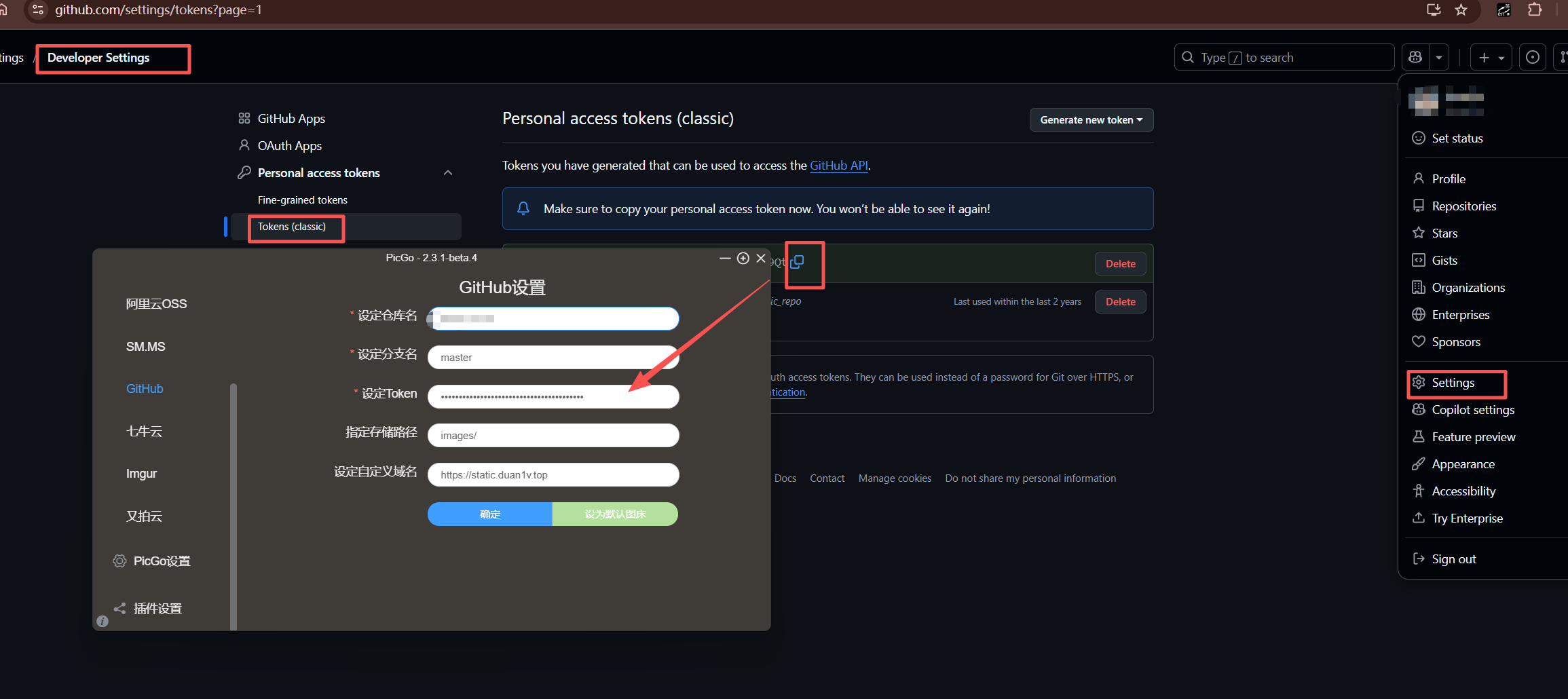
具体配置

使用

  • 将图片复制到Typora中,右键+上传图片

处理过往文章中的图片

  • 策略是先右键+复制到本地+上传图片
  • 过往文章少可以手动点点,我的比较少
  • 多的话python应该可以处理吧也许……

图床的选择

SMMS

  • 5 MB max per file. 10 files max per request.
  • 最大只有5G的存储,可以当副图床

七牛云

  • 需要域名
  • 国内服务器的CDN,必须是备案的域名
  • 非国内的访问极慢
  • 若是东南亚的服务器,picgo中的确认存储区域填 as0

笑果图床

  • 还有很多类似的网页图床,上传一次,有不同尺寸的图片
  • 但是picgo不支持

Github | Gitee + Jsdelivr

https://static.duan1v.top/images/20251017114735.png

Amazon CloudFront + Amazon S3

  • 我目前使用的图床
  • picgo需要搜索插件 S3

系统换成了Win11

小结

  • win11的UI比win10好很多

  • 最近先换系统,再搭博客,有点乏,就简单记录下

常用工具获取

笔记

笔记本

同步工具

密码

密码本

同步工具

WSL2

先搭建所需环境

将基本的软件安装完之后,导出打个包,备份以备换电脑时不用再次搭建

 1
 2
 3
 4
 5
 6
 7
 8
 9
10
11
# 导出
wsl --export Ubuntu-20.04 "H:\Wsl2\ubuntu_20.04.tar"

# 注册
wsl --import Ubuntu_20.04 "H:\Wsl2\data" "H:\Wsl2\ubuntu_20.04.tar" --version 2

# 注销
wsl --unregister Ubuntu_20.04

# 进入系统,可以配合Windows Terminal
wsl --distribution Ubuntu_20.04 --user 用户名

上云

  • 导出的WSL2大小超过5个G了,白嫖的云存储,我只发现了Google Drive

zsh&&git卡慢

1
2
3
4
5
6
7
8
git config --global --add oh-my-zsh.hide-dirty 1
git config --global --add oh-my-zsh.hide-status 1
# 移除配置
# git config --remove-section oh-my-zsh
# 当前仓库
git config --local -e
# 全局设置
git config --global -e

动态桌面

  • steam上的造物主壁纸

  • 不想steam随机开启,我先把壁纸下载下来,然后用了Lively Wallpaper

其他问题

无法使用outlook作为登录账户

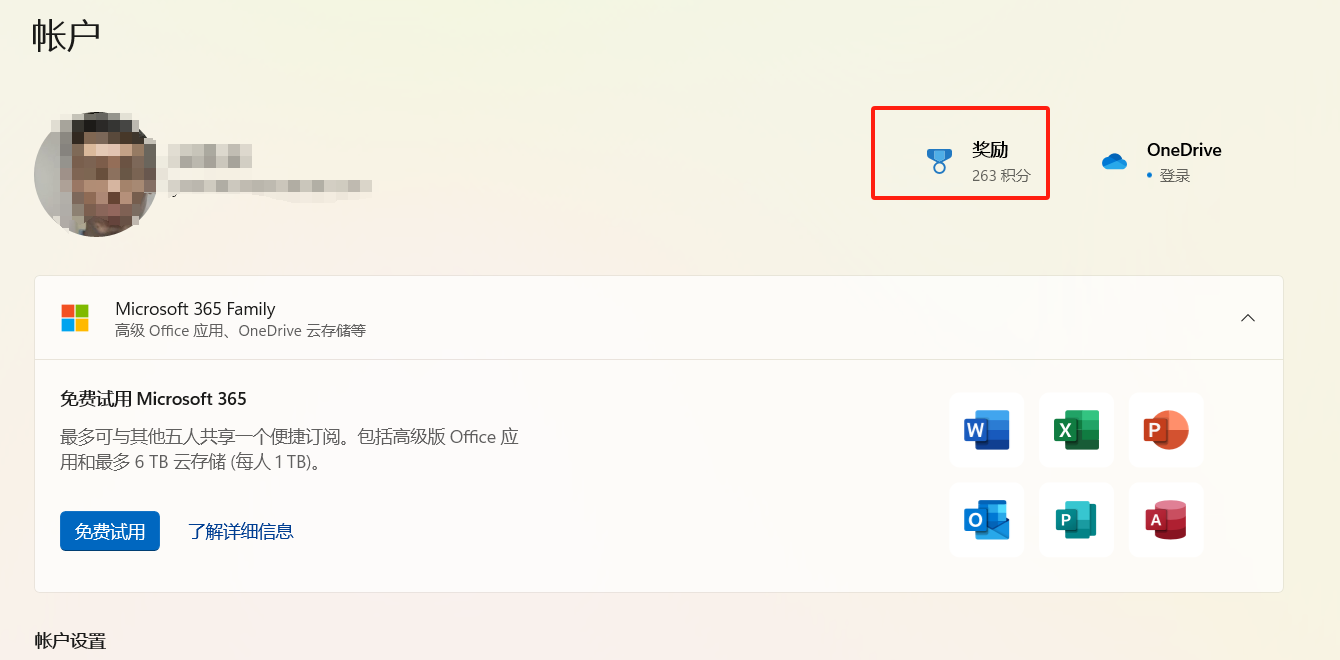
  • 将隐私与安全中的位置打开,不然登不了,全网找不到答案,挺折腾的就

  • 点击奖励登录

https://static.duan1v.top/images/20240731171355.png
trace

使用Hugo自搭博客系列四:部署

手动部署

参考github page

  • 注意,git仓库需要是public的;下面自动的不用

自动部署

Travis CI官网

Netlify官网

Vercel

AWS Amplify

Netlify

参考Netlify部署Hugo个人博客Hugo Algolia搜索及Netlify自动化处理 ,这位博主写的很详细了,我就不写了。

AWS Amplify

  • 我目前换成了这个来部署,之前使用的Netlify,总是间歇性卡顿,很卡的那种

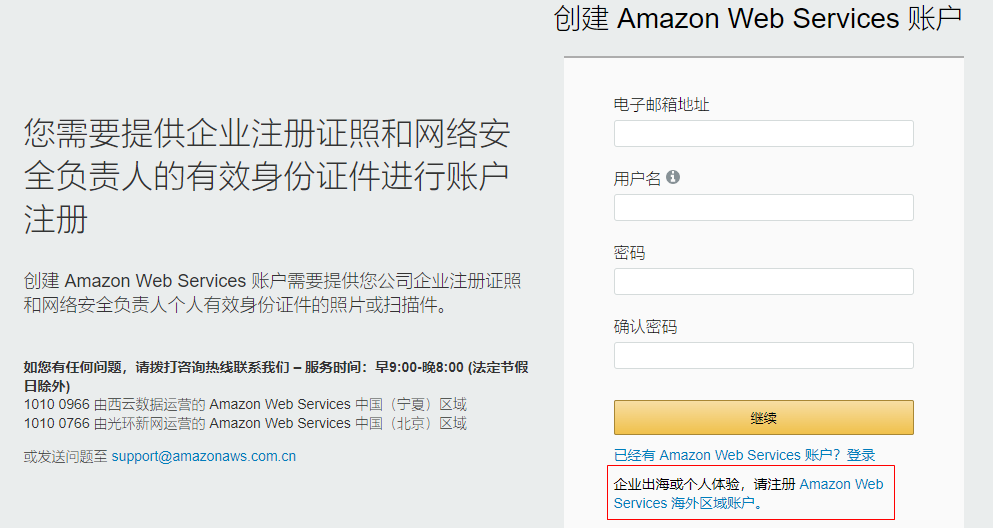
  • 关于亚马逊云的使用还是有点麻烦的,亚马逊中国只支持企业,个人体验需要用注册海外账户

https://static.duan1v.top/images/2b7b0f90a0ee37d6cc115e541fdc18ba.png
博客自动部署
  • 相比于Netlify,直接使用的不是extended,这会导致样式加载不生效,可以使用下面贴的 amplify.yml

  • 其他的环境变量和上面的Netlify差不多,将 HUGO_VERSION 改为 VERSION_HUGO

Vercel

  • AWS Amplify的工作人员打电话给我,说服务都是免费一年的;我心想,我可是想着白嫖永久的;好吧,那就清理资源,销号

  • 转头Vercel,折腾过上面两个之后,也很简单;

  • 目前我的图床、评论、博客都是放在github上的,由Vercel部署的

贴下几个文件

  • 根目录下的.gitignore
1
2
3
4
.env
node_modules
.idea
.vscode
  • 根目录下的netlify.toml
 1
 2
 3
 4
 5
 6
 7
 8
 9
10
11
12
13
14
15
16
17
18
19
20
21
22
23
24
25
26
27
28
29
30
31
32
33
34
35
[build]
publish = "public"
command = "hugo --gc --minify --theme=even && npm install atomic-algolia --save && npm run algolia"

[context.production.environment]
HUGO_VERSION = "0.101.0"
HUGO_ENV = "production"
HUGO_ENABLEGITINFO = "true"

[context.split1]
command = "hugo --gc --minify --enableGitInfo"

[context.split1.environment]
HUGO_VERSION = "0.101.0"
HUGO_ENV = "production"

[context.deploy-preview]
command = "hugo --gc --minify --buildFuture -b $DEPLOY_PRIME_URL"

[context.deploy-preview.environment]
HUGO_VERSION = "0.101.0"

[context.branch-deploy]
command = "hugo --gc --minify -b $DEPLOY_PRIME_URL"

[context.branch-deploy.environment]
HUGO_VERSION = "0.101.0"

[context.next.environment]
HUGO_ENABLEGITINFO = "true"

[[redirects]]
from = "/npmjs/*"
to = "/npmjs/"
status = 200
  • public目录下的.gitignore
1
2
*
!.gitignore
  • amplify.yml
 1
 2
 3
 4
 5
 6
 7
 8
 9
10
11
12
13
14
15
16
17
18
19
20
21
22
23
version: 1
frontend:
  phases:
    preBuild:
      commands:
        - wget https://github.com/gohugoio/hugo/releases/download/v${VERSION_HUGO}/hugo_extended_${VERSION_HUGO}_Linux-64bit.tar.gz
        - tar --overwrite -xf hugo_extended_${VERSION_HUGO}_Linux-64bit.tar.gz hugo
        - mv hugo /usr/bin/hugo
        - rm -rf hugo_extended_${VERSION_HUGO}_Linux-64bit.tar.gz
        - hugo version
        - hugo --gc --minify --buildFuture 
        - npm install atomic-algolia --save 
    build:
      commands:
        - hugo --gc --minify --theme=loveit --enableGitInfo=false 
        - npm run algolia
  artifacts:
    baseDirectory: public
    files:
      - '**/*'
  cache:
    paths:
      - node_modules/**/*

使用Hugo自搭博客系列三:algolia搜索

algolia

预备工作

https://static.duan1v.top/images/2knoef1Q3RBPt7g.png

本地项目创建/修改文件

添加前端UI

  • layouts/partials/head.html添加
1
2
3
{{- if .Site.Params.algolia.appId -}}
  <link rel="stylesheet" href="https://cdn.jsdelivr.net/npm/docsearch.js@2/dist/cdn/docsearch.min.css" />
{{- end -}}
  • layouts/partials/scripts.html添加
 1
 2
 3
 4
 5
 6
 7
 8
 9
10
11
12
13
14
15
16
17
18
19
{{- if .Site.Params.algolia.appId -}}
  <script src="https://cdn.jsdelivr.net/npm/docsearch.js@2/dist/cdn/docsearch.min.js"></script>
  <script>
  docsearch({
      apiKey: {{ .Site.Params.algolia.searchOnlyKey }},
      indexName: {{ .Site.Params.algolia.indexName }},
      appId: {{ .Site.Params.algolia.appId }},
      inputSelector: '.docsearch-input',
      debug: false,
  });
  docsearch({
      apiKey: {{ .Site.Params.algolia.searchOnlyKey }},
      indexName: {{ .Site.Params.algolia.indexName }},
      appId: {{ .Site.Params.algolia.appId }},
      inputSelector: '.mob-docsearch-input',
      debug: false,
  });
  </script>
{{- end -}}
  • layouts/partials/header.html , menu那里添加
1
2
3
4
5
    {{- if .Site.Params.algolia.appId -}}
      <li style="display:inline-block;margin-right:10px;">
        <input type="search" class="docsearch-input" placeholder="Search" />
      </li>
    {{- end -}}
  • layouts/partials/slideout.html, menu那里添加
1
2
3
4
5
    {{- if .Site.Params.algolia.appId -}}
      <li style="display:inline-block;margin-right:10px;">
          <input type="search" class="mob-docsearch-input" placeholder="Search" />
      </li>
    {{- end -}} 
  • assets/sass/_partial/_slideout.scss 修改
 1
 2
 3
 4
 5
 6
 7
 8
 9
10
11
12
13
14
15
16
17
18
19
20
21
22
23
.slideout-menu {
  position: fixed;
  top: 0;
  left: 0px;
  bottom: 0;
  width: 180px;
  min-height: 100vh;
  overflow: visible;
  -webkit-overflow-scrolling: touch;
  z-index: 2;
  display: none;

  .language-selector {
    padding-left: 30px;
  }
}

// 这里新增
@media screen and (max-width: 500px) {
    .algolia-autocomplete .ds-dropdown-menu {
        min-width: 99vw;
    }
}

layouts_default\list.algolia.json

1
2
3
4
5
6
7
8
9
{{/* 生成Algolia搜索索引文件 */}}
{{- $.Scratch.Add "index" slice -}}
{{/* content/posts或content/post目录下的博文才生成索引 */}}
{{- range where (where .Site.Pages "Type" "in" (slice "posts" "post")) "IsPage" true -}}
  {{- if and (not .Draft) (not .Params.private) -}}
    {{- $.Scratch.Add "index" (dict "objectID" .File.UniqueID "url" .Permalink "content" (.Summary | plainify) "tags" .Params.Tags "lvl0" .Title "lvl1" .Params.Categories "lvl2" "摘要") -}}
  {{- end -}}
{{- end -}}
{{- $.Scratch.Get "index" | jsonify -}}

修改 config.toml

 1
 2
 3
 4
 5
 6
 7
 8
 9
10
11
12
13
[outputs]
    home = ["HTML", "RSS", "Algolia"]

[outputFormats.Algolia]
  baseName = "algolia"
  isPlainText = true
  mediaType = "application/json"
  notAlternative = true
  
[params.algolia]
  appId = "填下" # 是id
  indexName = "填下"
  searchOnlyKey = "填下"

根目录执行 hugo 命令之后,在 public 目录下就会生成 algolia.json 文件

上传索引文件

手动

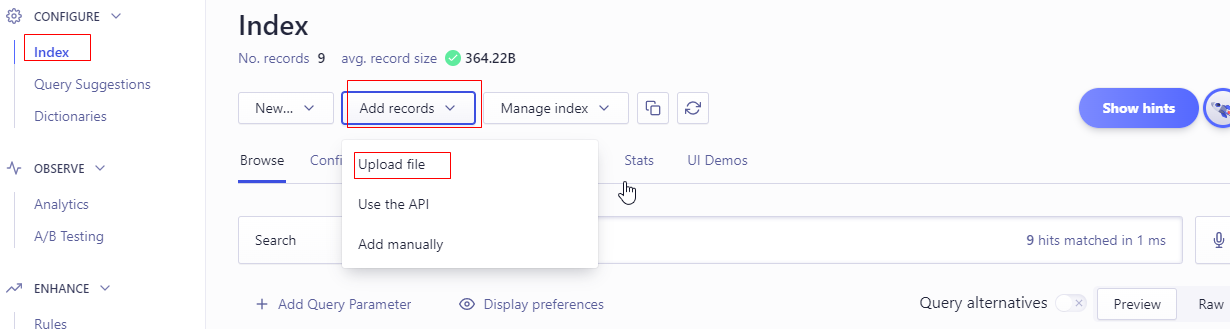
  • 将生成的索引文件algolia.json,上传到Algolia的服务器。

https://static.duan1v.top/images/vcj7CB4FMYPrODu.png

自动

  • 安装atomic-algolia
1
2
npm init
npm install atomic-algolia --save
  • 修改目录下的 package.json
1
2
3
4
  "scripts": {
    "test": "echo \"Error: no test specified\" && exit 1",
    "algolia": "atomic-algolia"
  },
  • 根目录下新建 .env 文件
1
2
3
ALGOLIA_APP_ID=你的Application ID # 注意是ID
ALGOLIA_INDEX_NAME=你的索引名字 ALGOLIA_INDEX_FILE=public/algolia.json 
ALGOLIA_ADMIN_KEY=你的Admin API Key
  • 执行上传命令
1
npm run algolia

本文参考:

使用Hugo自搭博客系列二:评论等一些配置

使用valine

1
2
3
4
5
6
[params.valine]
    enable = true
    appId = '填下'
    appKey = '填下'
    placeholder = '说点什么吧...'
    visitor = true # 浏览人数

使用Disqus

1
disqusShortname = "your disqus_shortname"
  • 注:若要本地也可以显示评论,需要修改themes\even\layouts\partials\comments.html
1
// if (window.location.hostname === 'localhost') return;

使用Waline

其他配置

配置下作者

1
2
[author]                  # essential                     # 必需
  name = "来个名字"

卜算子 (统计pv|uv)

  • 自带的有bug,我是关闭了
1
2
3
4
5
  [params.busuanzi]         # count web traffic by busuanzi # 是否使用不蒜子统计站点访问量
    enable = false
    siteUV = true
    sitePV = true
    pagePV = true
1
cp themes/loveit/layouts/partials/footer.html layouts/partials/footer.html

layouts/partials/footer.html<div class="footer-container"> 中添加:

1
2
3
4
<div class="footer-line">
    <i class='fas fa-chalkboard'></i>PV:<span id="busuanzi_value_site_pv"></span> | <i class='fas fa-chalkboard-teacher'></i>UV:<span id="busuanzi_value_site_uv"></span>
    <script async src="https://cdn.dusays.com/bsz.js"></script>
</div>

底部的社交链接

 1
 2
 3
 4
 5
 6
 7
 8
 9
10
11
12
13
14
15
16
  [params.social]                                         # 社交链接
    a-email = "mailto:dsdsa123@gmail.com"
    # b-stack-overflow = "http://localhost:1313"
    # c-twitter = "http://localhost:1313"
    # d-facebook = "http://localhost:1313"
    # e-linkedin = "http://localhost:1313"
    # f-google = "http://localhost:1313"
    g-github = "https://github.com/dsada123"
    # h-weibo = "http://localhost:1313"
    # i-zhihu = "http://localhost:1313"
    # j-douban = "http://localhost:1313"
    # k-pocket = "http://localhost:1313"
    # l-tumblr = "http://localhost:1313"
    # m-instagram = "http://localhost:1313"
    # n-gitlab = "http://localhost:1313"
    # o-bilibili = "http://localhost:1313"

网站favicon.ico

  • 替换themes\even\static\favicon.ico,还有其他几个icon

  • 执行hugo

  • 懒人可以使用 Logo神器

引入音乐播放器(LoveIt主题)

  • 配置文件修改(本地查看效果需要,线上不需要)
 1
 2
 3
 4
 5
 6
 7
 8
 9
10
11
12
13
14
    [params.page.library]
      [params.page.library.css]
        # someCSS = "some.css"
        # located in "assets/" 位于 "assets/"
        # Or 或者
        # someCSS = "https://cdn.example.com/some.css"
        "APlayerCSS" = "https://cdn.jsdelivr.net/npm/aplayer/dist/APlayer.min.css"
      [params.page.library.js]
        # someJavascript = "some.js"
        # located in "assets/" 位于 "assets/"
        # Or 或者
        # someJavascript = "https://cdn.example.com/some.js"
        "APlayerJS" = "https://cdn.jsdelivr.net/npm/aplayer/dist/APlayer.min.js"
        "MetingJS" = "https://cdn.jsdelivr.net/npm/meting@2.0.1/dist/Meting.min.js"
  • 在需要的地方引入短标签
1
{{< music url="/music/Wavelength.mp3" name="Wavelength" artist="oldmanyoung" cover="/images/Wavelength.jpg" fixed="false" >}}

效果:

  • 也可以自定义一个layout,放在footer里,全局引用,不过这不是单页面的,所以切换页面会暂停播放
 1
 2
 3
 4
 5
 6
 7
 8
 9
10
11
12
13
<meting-js
    name="rainymood"
    artist="rainymood"
    url="/music/Wavelength.mp3"
    cover="/images/Wavelength.jpg"
    mini="true"
    fixed="true">
    <pre hidden>
        [00:00.00]This
        [00:04.01]is
        [00:08.02]lyric
    </pre>
</meting-js>

加密,这里以 posts 下面的文章加密为例(LoveIt主题)

  • 可防JS禁用 ,可cookie暂储密码

  • 新建 layouts/posts/single.html

1
mkdir layouts/posts/ && cp themes/LoveIt/layouts/posts/single.html layouts/posts/single.html
  • 创建文件 static/js/pwd.js ,代码如下
 1
 2
 3
 4
 5
 6
 7
 8
 9
10
11
12
13
14
15
16
17
18
19
20
21
22
23
24
25
26
27
28
29
30
31
32
33
34
35
36
37
38
function getCookie(cname) {
    var name = cname + "=";
    var ca = document.cookie.split(';');
    for (var i = 0; i < ca.length; i++) {
        var c = ca[i].trim();
        if (c.indexOf(name) == 0) return c.substring(name.length, c.length);
    }
    return "";
}

function checkCookie(cname, cvvalue) {
    var cvalue = getCookie(cname);
    if (cvalue != "" && cvalue === cvvalue) {
        return true;
    } else {
        return false;
    }
}

function setCookie(cname, cvalue, exhours) {
    var d = new Date();
    var h = 60 * 60 * 1000
    d.setTime(d.getTime() + (exhours * h));
    var expires = "expires=" + d.toGMTString();
    document.cookie = cname + "=" + cvalue + "; " + expires + "; path=/";
}

function errorPwd() {
    alert('密码错误!');
    if (history.length === 1) {
        window.opener = null;
        window.open('', '_self');
        window.close();
    } else {
        history.back();
    }
    return false;
}
  • layouts/posts/single.html 中的 {{- $params := .Scratch.Get "params" -}} 之后添加如下代码
 1
 2
 3
 4
 5
 6
 7
 8
 9
10
11
12
13
14
15
16
17
18
19
20
21
22
23
24
25
    {{- $password := $params.password | default "" -}}
    {{- $encryptedKey := $params.encryptedKey | default "" -}}
    {{- if ne $password "" -}}
        <noscript><meta http-equiv="refresh" content="0; url=/404.html" /></noscript>
        <script type="text/javascript" src="/js/pwd.js"></script>
        <script>
            (function(){
                document.body.style.display="none"
                if({{ $password }}){
                    if({{ $encryptedKey }}){
                        if (!checkCookie({{ $encryptedKey }},{{ $password }})) {
                            if (prompt('请输入文章密码') != {{ $password }}){
                                return errorPwd();
                            } else {
                                setCookie({{ $encryptedKey }},{{ $password }},1);
                            }
                        }
                    } else if (prompt('请输入文章密码') != {{ $password }}){
                        return errorPwd();
                    }
                }
                document.body.style.display="inherit"
            })();
        </script>
    {{- end -}}
  • posts下面 的文章中使用 : encryptedKey => cookie中的键;password => 密码
1
2
3
4
5
---
encryptedKey: "gsgds"
password: "dsada"

---